Arcanic Observer - Digital monitoring of on-campus written exams
When you take written exams on campus, you must always activate the program Observer, unless your study program has informed you otherwise. Failure to activate Observer during an exam will be considered an attempt at cheating.
Observer is designed to prevent the use of unauthorized aids during the exam and works by:
- Monitoring your screen for the entire duration of the exam
- Monitoring which apps are running on your device for the entire duration of the exam
- Automatically shutting down when the exam ends
Recordings and app logs from Observer can be viewed live and are stored for further analysis. Only selected administrators have access to recordings and logs.
Guide to using Observer
You must download and install Observer well in advance of the exam. The program can be found under your written exams in the Digital Exam system, or by creating a demo exam in Digital Exam.
Observer can only record from 60 minutes before the exam starts until the exam ends. To test the program, it is recommended that you create a demo exam in Digital Exam and check that Observer works. If it does not, please contact IT servicedesk (servicedesk@sdu.dk) for help.
If you have already installed Observer, you do not need to download it again. However, always create a demo exam before each exam to test the program. When you click “Start Observer,” the program will prompt you to update if a new version is available.
How to install and test Observer
NOTE: Use this guide to test Observer before the actual exam date. On the exam day, open your current exam and start Observer from there. If you start Observer from a demo exam right before or during the actual exam, your recordings will not be saved, and you risk being reported for cheating.
Open Digital Exam at https://digitaleksamen.sdu.dk


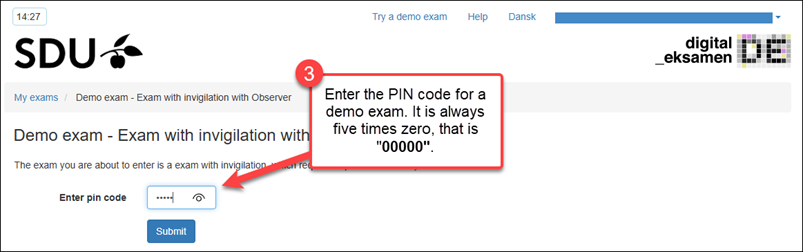

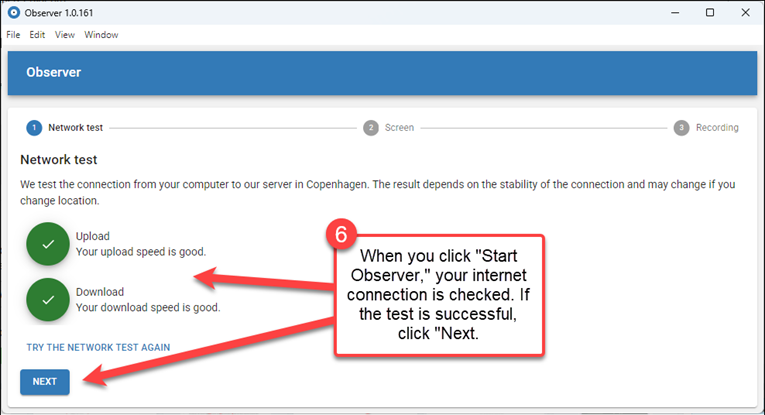
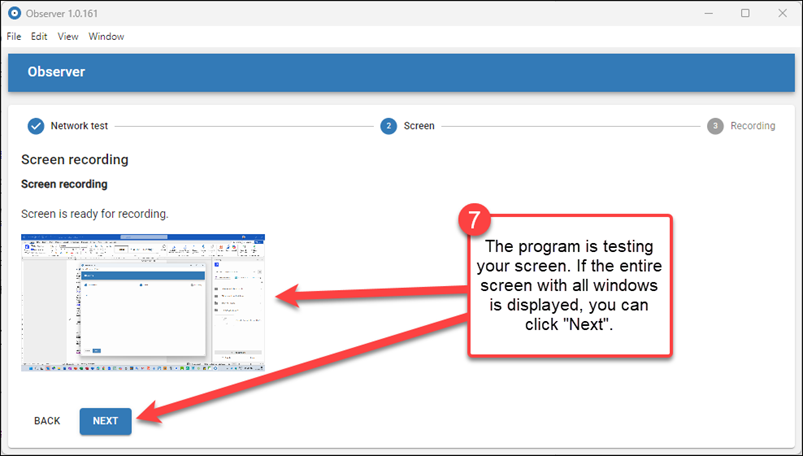

When Observer is recording, a red dot appears in the Observer icon in the taskbar (Windows) or dock (macOS). On Linux, this indicator is not available. See more about Linux below.
A red frame will also appear around your screen while recording is active. This applies to Windows, macOS, and Linux. On some screen resolutions, the red frame may be difficult to see, but this is not a problem, as the recording still functions correctly.
Important notes
- Do not close or interrupt Observer while the exam is in progress.
- Do not change your screen resolution while Observer is recording.
- Recordings in Observer can only be started 60 minutes before the exam.
- Observer starts recording as soon as you click "Start Observer." Therefore, avoid having private content on your screen. Recordings made before the start of the exam will not be reviewed by the exam administration.
Important information regarding macOS
Only versions of macOS supported by Apple are supported by Observer. See more details here.
You may also need to grant permission for screen recording under System Settings and then Privacy & Security. This depends on your version of macOS.
Important information regarding Linux OS
Please note that the Observer client is unsupported. You are therefore responsible for ensuring the program works on your installation. This may require you to spend extra time testing Observer before your exams.
The following applies:
- It only works as a Debian package, i.e., for Ubuntu, Debian, or Mint.
- It only works with X11, not Wayland.
Need more help?
See Arcanic Observer’s general guides.
Observer can only record up to 60 minutes before the exam starts and until 15 minutes after the exam ends.
The exam start and end times are defined in the Digital Exam system and can be viewed for the specific exam in Digital Exam.
You can manually stop Observer at any time, and you must do so at the end of the exam, after you have shown your receipt to the exam invigilator.
You must not stop Observer during the exam, as this will be considered an attempt at cheating.
Recordings made by Observer are solely used to determine whether there has been an attempt at cheating during written on-site exams.
- A limited number of trusted staff members from your faculty and SDU Education have access to view the recordings in Observer.
- You also have access to view your own Observer recordings during the exam in Digital Exam.
SDU retains the Observer recordings for five years from the date of recording, after which they are permanently deleted.
You can view the data collected during your written on-site exam by logging into the Digital Exam system and navigating to the submission receipt for the specific exam.
In the submission receipt, there will be a link to a webpage where the relevant data can be viewed no later than 2 hours after the exam has ended.